Most WordPress sites are handed over at launch with a login, a password, and a vague instruction to “keep your plugins updated.” That’s a bit like handing someone the keys to a car and telling them to check the oil sometimes. Technically true. Completely insufficient.
WordPress powers around 43% of the web. It’s also one of the most frequently targeted platforms for hackers, malware, and SEO spam, precisely because so many site owners don’t know what they’re supposed to be doing after launch. The vulnerabilities aren’t exotic. They’re almost always the same handful of neglected maintenance tasks.
This checklist covers everything that should be happening on a WordPress site every month. Some of it you can do yourself. Some of it requires technical knowledge or the right tools. All of it matters.
Want this as a printable checklist?
Download the PDF version to keep on file or share with your team.
Why this matters more than most people realize
WordPress maintenance isn’t glamorous work and it rarely gets attention until something goes wrong. By the time it goes wrong (a hacked site, a broken plugin update, a Google penalty for injected spam links, a site that loads in eight seconds), the cost of fixing it is significantly higher than the cost of preventing it.
of WordPress hacks are preventable with basic maintenance
of WordPress vulnerabilities come from outdated plugins
page speed delay can reduce conversions by up to 7%
The businesses that never think about their WordPress site are the ones who call in a panic on a Friday afternoon because their site is down, their email is bouncing, and they have no idea when they last took a backup. That call is expensive, stressful, and almost always avoidable.
A neglected WordPress site isn’t a stable WordPress site. It’s a site that hasn’t broken yet.
The monthly maintenance checklist
These are the tasks that should happen every single month without exception. Some take minutes. Some require judgement and technical knowledge. None of them should be skipped.
WordPress core update
Always update WordPress core when a new version is available. Major version updates (5.x to 6.x) warrant testing on a staging environment first. Minor updates (6.4.1 to 6.4.2) are generally safe to apply directly.
High risk if skipped
Plugin updates, with testing
Update all plugins but do not do it blindly. Check the plugin changelog before updating. Major version jumps can break functionality. After updating, check every key page of the site for visual or functional issues.
High risk if skipped
Theme update
If you're using a third-party theme, keep it updated. If you've made direct edits to the theme files rather than using a child theme, updates will overwrite your changes, a good reason to always use a child theme.
Medium risk if skipped
PHP version check
WordPress runs on PHP. Old PHP versions are unsupported, slower, and insecure. Check your hosting control panel and ensure you're running a currently supported PHP version. As of 2026, anything below PHP 8.1 is end-of-life.
High risk if outdated
Malware scan
Run a full malware scan monthly using a tool like Wordfence or Sucuri. Don't wait for symptoms. Most injected malware is invisible to the site owner and designed to stay that way. It redirects visitors, steals data, or builds spam links in the background.
Critical
User account audit
Review all WordPress user accounts. Remove anyone who no longer needs access. Check for any accounts you don't recognise. A hallmark of a compromised site is the creation of rogue administrator accounts.
High risk if ignored
Failed login attempt review
Check your security plugin's login log for unusual activity. Large numbers of failed login attempts from foreign IP addresses usually indicate a brute-force attack in progress. Implement login attempt limits and consider two-factor authentication if you haven't already.
Monitor monthly
SSL certificate validity
Confirm your SSL certificate is valid and not approaching expiry. An expired SSL causes browsers to show security warnings to visitors, a guaranteed way to lose them immediately. Most hosting providers auto-renew, but check anyway.
Check monthly
Deactivate and delete unused plugins
Deactivated plugins can still be exploited if they contain vulnerabilities. If you're not using a plugin, delete it entirely. Every plugin on your site is an attack surface. Keep the list as short as possible.
Monthly
Verify automated backups are running
Most managed hosting includes daily backups, but "included" doesn't mean "working." Log in and confirm that backups have actually run in the last 24 hours. A backup system that silently failed three months ago is worse than no backup system, because you think you're covered.
Verify monthly
Offsite backup storage
Backups stored on the same server as your site are not backups. They're copies. If the server is compromised or the hosting provider has an outage, you lose both. Backups should live somewhere entirely separate: Amazon S3, Google Drive, Dropbox, or a dedicated backup service.
Critical
Test restore process quarterly
A backup you've never tested is a backup you don't know works. At least once a quarter, run through the restore process on a staging environment. The first time you want to know how to restore your site should not be during an actual emergency.
Quarterly
Broken link check
Broken internal links damage user experience and send negative signals to Google. Run a broken link checker monthly, using Screaming Frog for a full crawl or a lighter plugin for ongoing monitoring. Fix any 404s with redirects or updated links.
Monthly
Google Search Console: crawl errors and manual actions
Log into Search Console and check for any new crawl errors, coverage issues, or (critically) manual actions. A manual action from Google is a serious penalty that will tank your rankings. Most site owners never check and only discover it months later when they notice traffic has collapsed.
Check monthly
Contact form and key conversion point test
Manually submit your contact form and any other key conversion forms every month. Plugin updates and hosting changes regularly break forms in ways that aren't visible on the front end. The form looks fine but submissions never arrive. You won't know until you test.
Monthly: critical
Uptime monitoring check
If you don't have uptime monitoring set up, do it today. Tools like UptimeRobot have free tiers that will alert you within minutes if your site goes down. Without it, you might not know your site has been down for six hours until a client mentions it.
Set up if not running
The consequence of skipping this
None of the items on this checklist are complicated in isolation. The challenge is doing all of them, every month, consistently, especially when the site appears to be working fine and there’s no visible reason to spend time on it.
What neglected maintenance looks like in practice
The scenarios we get called in to fix
Site hacked through an outdated plugin vulnerability: injected spam links pointing to pharmaceutical sites, invisible to the owner but visible to Google. Rankings collapse over months before anyone notices.
Plugin update breaks the checkout on an e-commerce site over a weekend. No uptime monitoring. Owner finds out Monday morning when sales are zero and customers have been bouncing for two days.
Contact form broken for three months after a hosting migration. Dozens of enquiries never arrived. The business assumed the leads had dried up. They hadn't.
No offsite backup. Hosting provider has a server failure. Site is unrecoverable. Three years of content, a custom theme, and all customer data lost permanently.
PHP version so outdated that a required plugin update can't be applied without breaking the site. Months of technical debt to unwind before the site can move forward.
These aren’t edge cases. They’re the regular Tuesday calls that come in when maintenance has been deferred long enough.
Doing it yourself versus having it managed
Everything on this checklist is doable by a non-technical site owner with the right plugins, the right hosting, and the willingness to learn. The question is whether it’s the best use of your time and whether you’ll actually do it every month without fail.
Most business owners start with good intentions and then miss a month because things got busy, miss another because the first miss didn’t cause any visible problems, and then find themselves a year later with a site running WordPress 6.2, PHP 7.4, and eighteen outdated plugins. At that point the maintenance work has turned into a recovery project and they’ve probably got spam posts that are ruining their SEO by making the site look shady.
WordPress care
If the checklist is the problem, not the knowledge
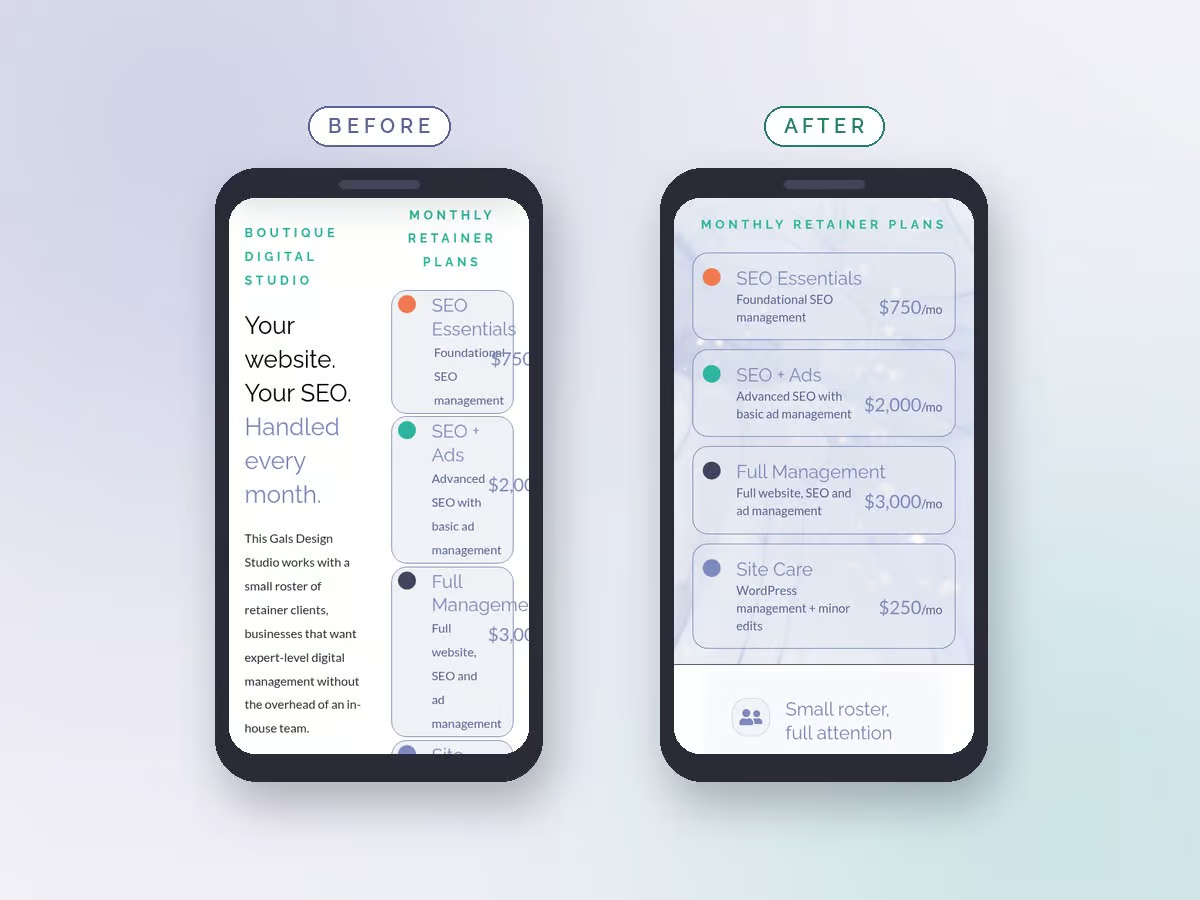
Every retainer we run includes this checklist as standard: updates, backups, security, the small edits that keep a site current, and a monthly report saying what changed. It exists for business owners who understand what needs to happen but would rather have someone else make sure it actually does.
See what a retainer covers →
If you’re going to manage your own WordPress maintenance, the most important thing you can do is schedule it. Pick a date (the first Monday of every month, the last Friday) and put it in your calendar as a recurring appointment. Maintenance that happens on a schedule happens. Maintenance that happens “when there’s time” doesn’t.
M
Michelle
Founder, This Gals Design Studio
WordPress developer, SEO strategist, and paid media manager with 13+ years of hands-on client work. HubSpot certified. Runs a deliberately small roster of retainer clients because that's where the real results happen.